
As artists, we are constantly searching for strong reference material. The right source image can elevate your painting before you even touch the canvas. Today, creating your own painting sources is easier than ever thanks to powerful tools across your phone, iPad, and computer.
Each device offers something unique. The key is knowing how to use them to support your creative vision, not overwhelm it.
Let’s walk through some of our favorite programs and how they can serve your process.
Why Create Your Own Painting Sources
Before we get into tools, let’s ground this in purpose.
When you build your own reference, you take control of:
- Composition
- Lighting
- Value structure
- Mood and storytelling
Instead of copying what already exists, you become the designer of your painting from the very beginning.
These tools are not shortcuts. They are creative partners.
Working on a Computer: Precision and Power
Your computer is where you can go deep. This is the space for refining, compositing, and building complex references with intention.
Canva
Canva is incredibly approachable and surprisingly powerful. It is perfect for:
- Creating quick compositions
- Combining multiple images
- Testing layouts and crops
- Adding text or design elements for planning
It is especially helpful if you are newer to digital tools or want something fast and intuitive. It's free or has a low monthly cost for premium features.
Adobe Photoshop and Illustrator
These are industry standards for a reason.
Photoshop is ideal for:
- Advanced photo manipulation
- Value studies and color adjustments
- Layering multiple references into one cohesive image
- Creating dramatic lighting effects
Illustrator is more vector-based, but can still be useful for:
- Simplifying shapes
- Designing strong compositions
- Planning graphic elements within a painting
These tools give you full control, but they do come with a learning curve and a higher monthly cost.
Pixlr
Pixlr is a fantastic free alternative that lives right in your browser.
It allows you to:
- Adjust values and colors quickly
- Crop and refine your composition
- Layer images similar to Photoshop
- Enhance clarity and focal points
If you want Photoshop-like functionality without the cost, Pixlr is a great place to start.
See how the artists on The Outstanding Artist, Season 4, use painting sources...
Working on an iPad: Freedom and Flow
The iPad is where digital meets intuitive. It feels close to drawing or painting, which makes it ideal for artists.
Procreate
Procreate is one of the most beloved tools among artists.
It offers:
- A natural drawing experience
- Easy layering and blending
- Custom brushes for sketching or painting
- Animation tools for exploring movement
You can sketch directly over your reference, simplify shapes, or redesign the entire composition. It is a one-time purchase, which makes it even more appealing.
Pixelmator and Photomator
These tools bring powerful editing into a simple interface.
Photomator is excellent for:
- Advanced color adjustments
- Working with RAW images
- Cleaning up distractions with its repair tool
- Enhancing lighting and atmosphere
Pixelmator Pro (on Mac and iPad) adds:
- AI-powered tools
- Professional-level editing without complexity
- Smooth integration across devices
These are perfect when you want strong results without getting lost in technical details.
Working on Your Phone: Speed and Accessibility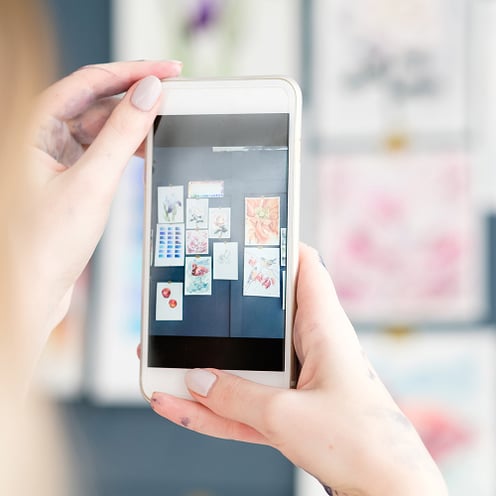
Your phone is always with you. That makes it one of your most powerful creative tools.
Use it to capture ideas, edit on the go, and build references wherever you are.
Snapseed
Snapseed is simple, clean, and surprisingly capable.
With it, you can:
- Adjust brightness and contrast to clarify values
- Add structure and detail
- Use selective editing to guide focus
- Apply subtle filters to explore mood
It is perfect for quick edits that make your reference stronger in seconds.
Photomator (Mobile)
Photomator on your phone brings advanced tools into your pocket.
You can:
- Automatically separate subject and background
- Remove unwanted objects with smart healing
- Fine tune color and lighting with precision
This is especially useful when you want to quickly elevate a photo into something paint-worthy.
Phone vs iPad vs Computer: Which Should You Use?
The answer is not one or the other. It is how you combine them.
- Phone for capturing and quick edits
- iPad for sketching, ideation, and creative exploration
- Computer for refining and building polished references
Think of it as a creative pipeline rather than separate tools.
Keep It Simple, Keep It Intentional
With so many tools available, it is easy to overcomplicate the process.
Come back to the essentials:
- Clear value structure
- Strong composition
- Intentional lighting
- A compelling focal point
The program does not make the painting. Your decisions do.
Use these tools to support your vision, not replace it.
Take It Further
If you want to go deeper into creating powerful painting sources and building a complete, professional process from idea to finished artwork, that is exactly what we teach inside the Mastery Program.
We guide you step by step so you can move from uncertainty to clarity in your art, your workflow, and your creative direction.
Your next level as an artist starts with stronger decisions.